Social Media Posting Calendar: Free Template + 5-Step Setup
Copy a seven-column posting calendar and follow five setup steps. Use the worked week to assign production and approval before committing more posts.
Introduction
Social media posting calendar plans fail when you add a publishing date before assigning the filming and review. A row saying "Wednesday: product Reel" doesn't tell your creator what to film or tell the founder when approval is needed. By Wednesday, the date is clear and the post still isn't ready.
We recommend a seven-column working plan, a small queue of ideas and a weekly review. Copy the template below into your own spreadsheet, then follow the five setup steps. The structure is free to use and doesn't require a scheduling subscription. It helps you organise production; it won't publish a post or guarantee sales.
Table of Contents
- 1. Introduction
- 2. Why a social media posting calendar gets abandoned
- 3. Copy this social media posting calendar structure
- 4. Build the calendar in five steps
- 5. Choose fewer topics and reusable formats
- 6. Run a week from batching to publication
- 7. Plan India dates and IST slots carefully
- 8. Review the plan without adding another dashboard
- 9. Conclusion: make the next post easier to finish
- 10. FAQs
Why a social media posting calendar gets abandoned
The template becomes another assignment
Real forum questions describe people looking for a basic planner while handling design, copywriting and another job. Others describe posting daily for a week, then disappearing. Those accounts point to a workload problem, not proof that everyone needs more software.
A complicated calendar can hide that problem. You spend the planning session filling themes, colours and daily slots, but the camera work remains unassigned. We would start by asking which post you can finish with the information and people available now.
Commit less and explain it better
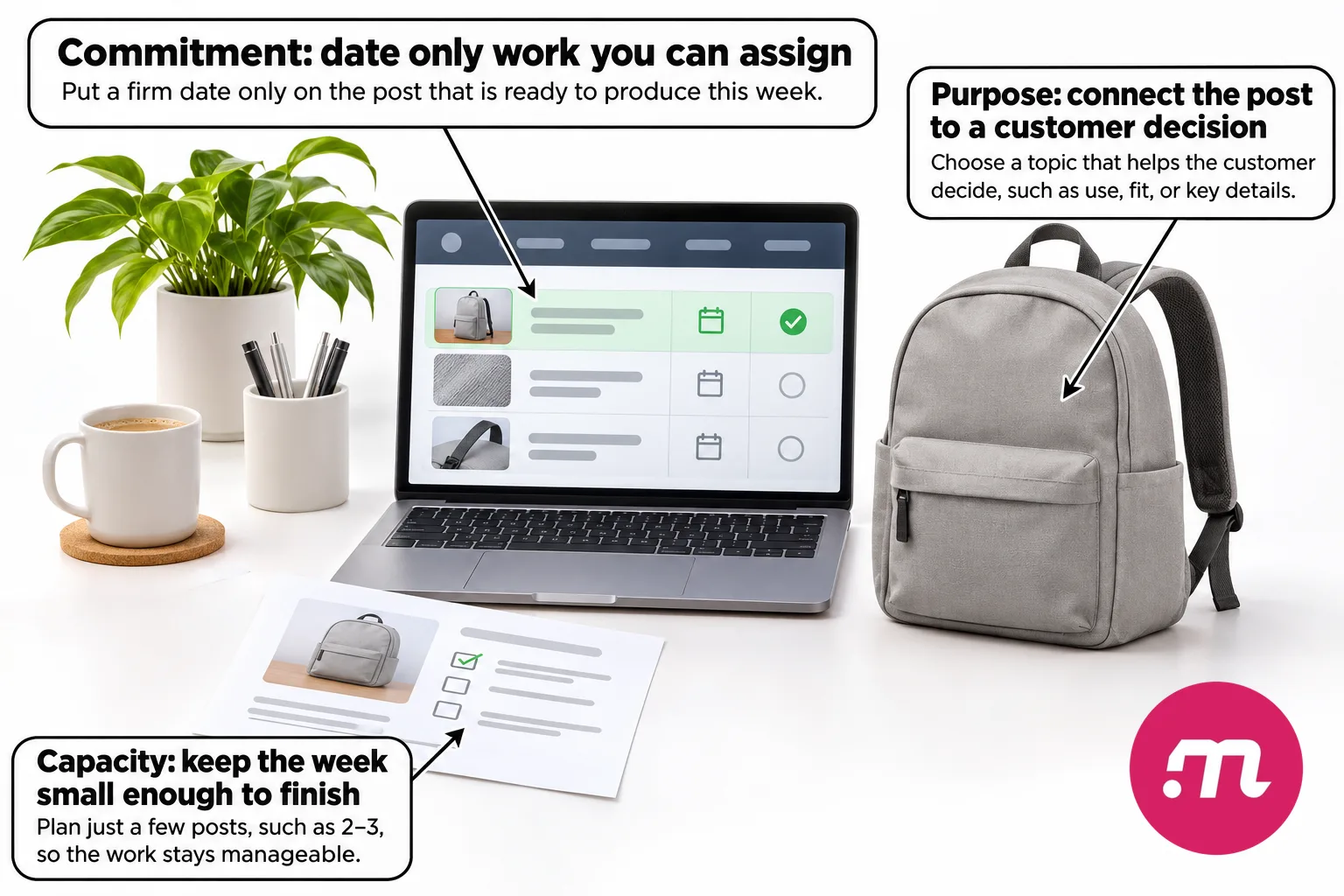
Keep rough ideas separate from dated work. A useful idea may need a sample that hasn't arrived and a founder who hasn't agreed to review it. Adding a date won't remove either dependency. Move it into the working plan once you can name the next action and its owner.
For a D2C brand, an explanation of product dimensions may help a buyer more than another attractive product photo. The calendar should capture that reason. If every row just says "engagement", you'll struggle to decide what to make or how to judge it afterwards.
When you discuss production support, use Mommantum's service FAQs to clarify responsibilities. We prefer a modest plan with agreed inputs to a larger deliverable count that depends on facts nobody has supplied.
Copy this social media posting calendar structure
Start with seven working columns
This free social media calendar template is a copyable layout, with no email form or download gate. Create the headings across a blank sheet. The entries below describe an illustrative backpack brand, not a client campaign or a tested performance result.
| Publish slot | Channel and format | Question and brief | Customer action | Owner and asset deadline | Status and approval | Material and learning |
|---|---|---|---|---|---|---|
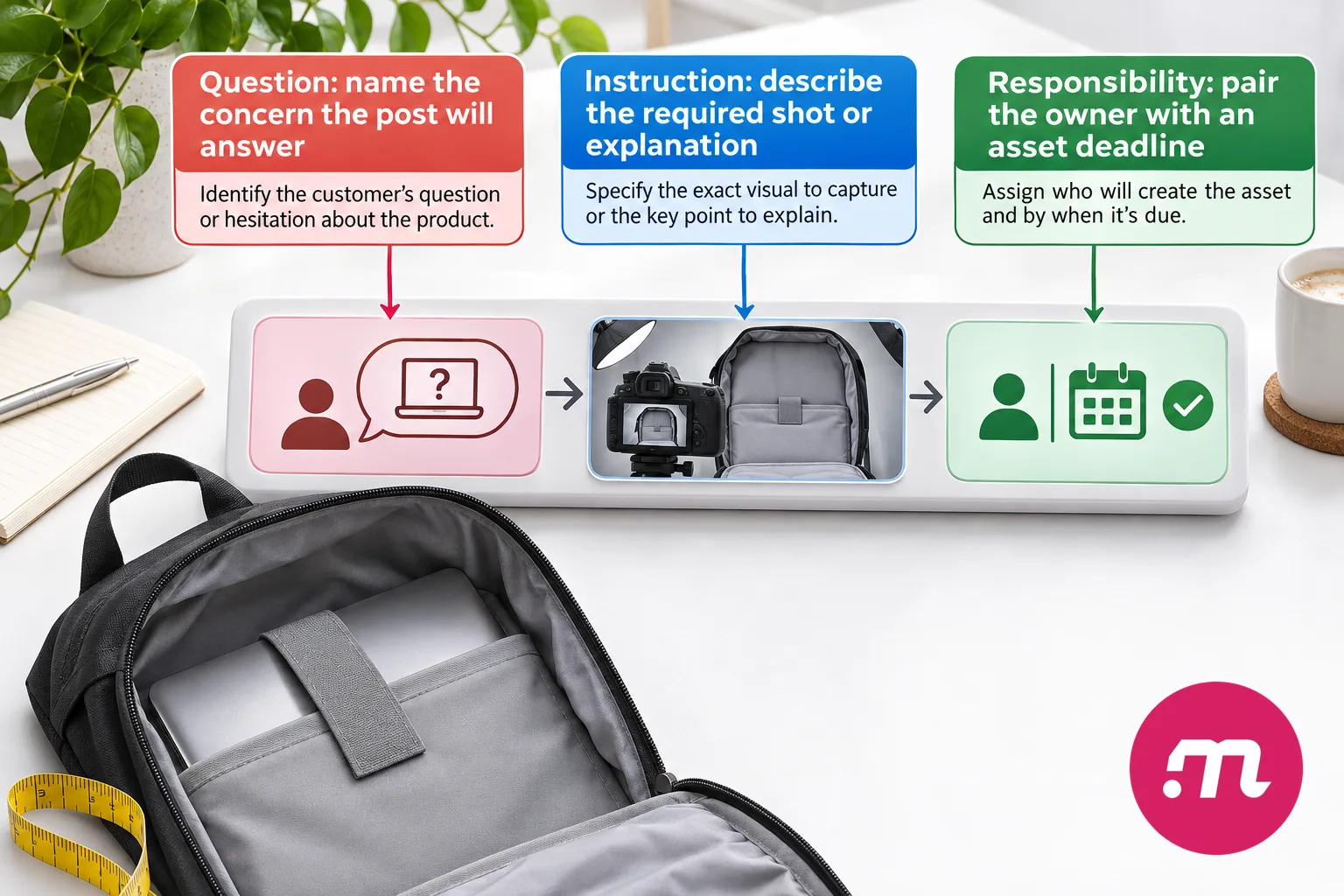
| Chosen Monday; IST | Instagram carousel | Will my laptop fit? Show measured compartment. | Check the size guide | Designer; before review | Draft; founder checks dimensions | Caption and asset location; add result later |
Seven columns are a starting constraint for this exercise, not a permanent limit. If you need to filter by owner, separate Owner from Deadline. Keep the information together until splitting it solves a real problem, rather than copying a large template's field count.
Make the next task visible
In Question and brief, write what must happen next: "photograph the compartment with a ruler" is more useful than "size content". In Status and approval, record whose decision you're waiting for. Keep the caption beside the correct asset in the final column.
Add an Ideas tab with just the question, possible angle and supporting note. Leave the publish slot blank there. A separate idea queue makes it easier to collect material without creating dozens of artificial deadlines.
We wouldn't make a month-shaped grid the main production document. It can be a helpful presentation view, but long captions and approval notes quickly become awkward inside date boxes. A row-based list is easier to maintain when the work changes.
Build the calendar in five steps
Set up one dependable working list
- Create a blank sheet with the seven headings and a nearby Ideas tab.
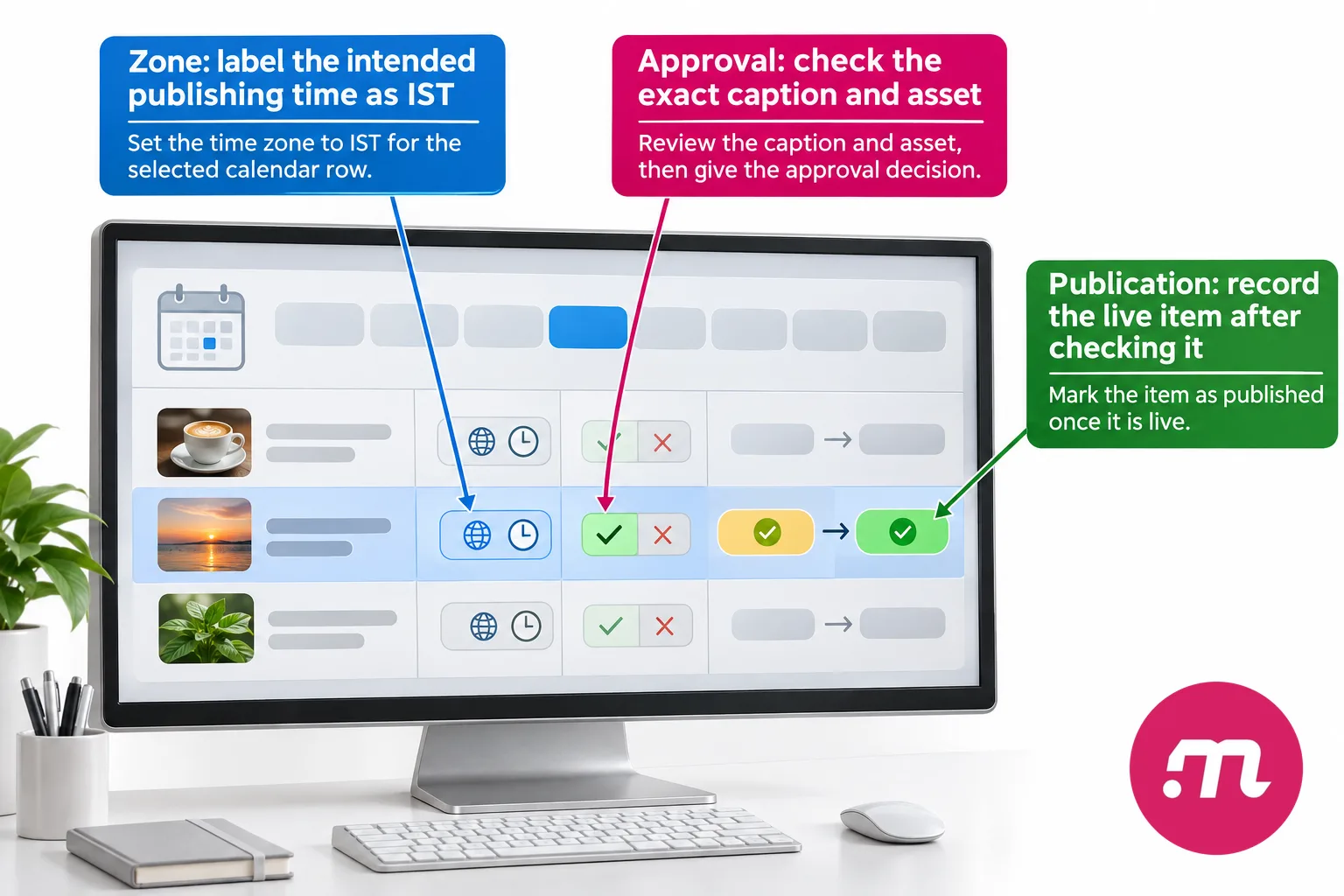
- Set the working time zone, then enter actual publishing dates rather than undated weekdays.
- Write one complete brief with an owner, asset deadline and intended customer action.
- Add written status options and identify who approves the caption and creative.
- Fill a manageable week, then book the production and review work before committing more posts.
For an India-based plan, label publish slots IST. In Google Sheets, File, then Settings opens the locale and time-zone controls under General. Google's spreadsheet settings guide explains that these settings apply to the whole spreadsheet. Check a separate scheduler's time zone too; changing a sheet isn't an instruction to another publishing tool.
Choose an unambiguous date style and stick to it. "11 Nov 2026" is easier to interpret across teams than an unexplained numeric date. If a client works overseas, record the audience's intended time zone instead of assuming your local hour is theirs.
Use status labels instead of colour alone
Select the status cells and choose Insert, then Dropdown. Add Draft, Review, Changes needed, Ready and Published as your options. Google's dropdown instructions cover the setup. Colour can help you scan, but the written label should explain the state.
Ready means the specific caption and asset have approval. Published means someone has checked that the intended item went live. We wouldn't collapse those states into Done; an approved post can still miss publication.
Choose fewer topics and reusable formats
Try three lanes and two formats
As a starting exercise, choose three content lanes: product understanding, use in context and buying reassurance. Choose two reusable formats, perhaps a short demonstration video and an explanatory carousel. These numbers limit planning decisions; they aren't a claim about what an algorithm rewards.
For the backpack example, product understanding covers dimensions and compartments. Use in context shows what the bag holds during a realistic commute. Buying reassurance explains a verified service detail, such as how to find the brand's actual returns information.
The same customer question can generate distinct briefs. "Will my laptop fit?" might become a measurement carousel and a demonstration with the correct device. Don't produce both merely to fill space. The second post should explain something the first can't show clearly.
Adapt the plan to the channel
An Instagram calendar template needs visual instructions: opening shot, slide order or Story sequence. A LinkedIn post for office buyers may need a purchasing explanation instead. Reuse the underlying fact, but check whether the format and customer action fit the audience.
An Instagram grid preview can help a reviewer assess adjacent visuals. Keep it as an optional review aid, not evidence that the message is useful. A neat grid doesn't confirm stock, dimensions or the accuracy of a delivery statement.
We'd rather reduce the number of active channels than spread an already stretched team thinner. Mommantum's social media marketing approach connects the plan with production capacity and customer decisions, rather than treating each platform as an automatic daily obligation.
Run a week from batching to publication
Work backwards from the slot
Use this illustrative week to see how the pieces interact. It isn't a recommended frequency or a best-time-to-post study. Replace each slot with the actual date and hour you intend to test.
| Slot | Brief | Dependency before production | Check before publication |
|---|---|---|---|
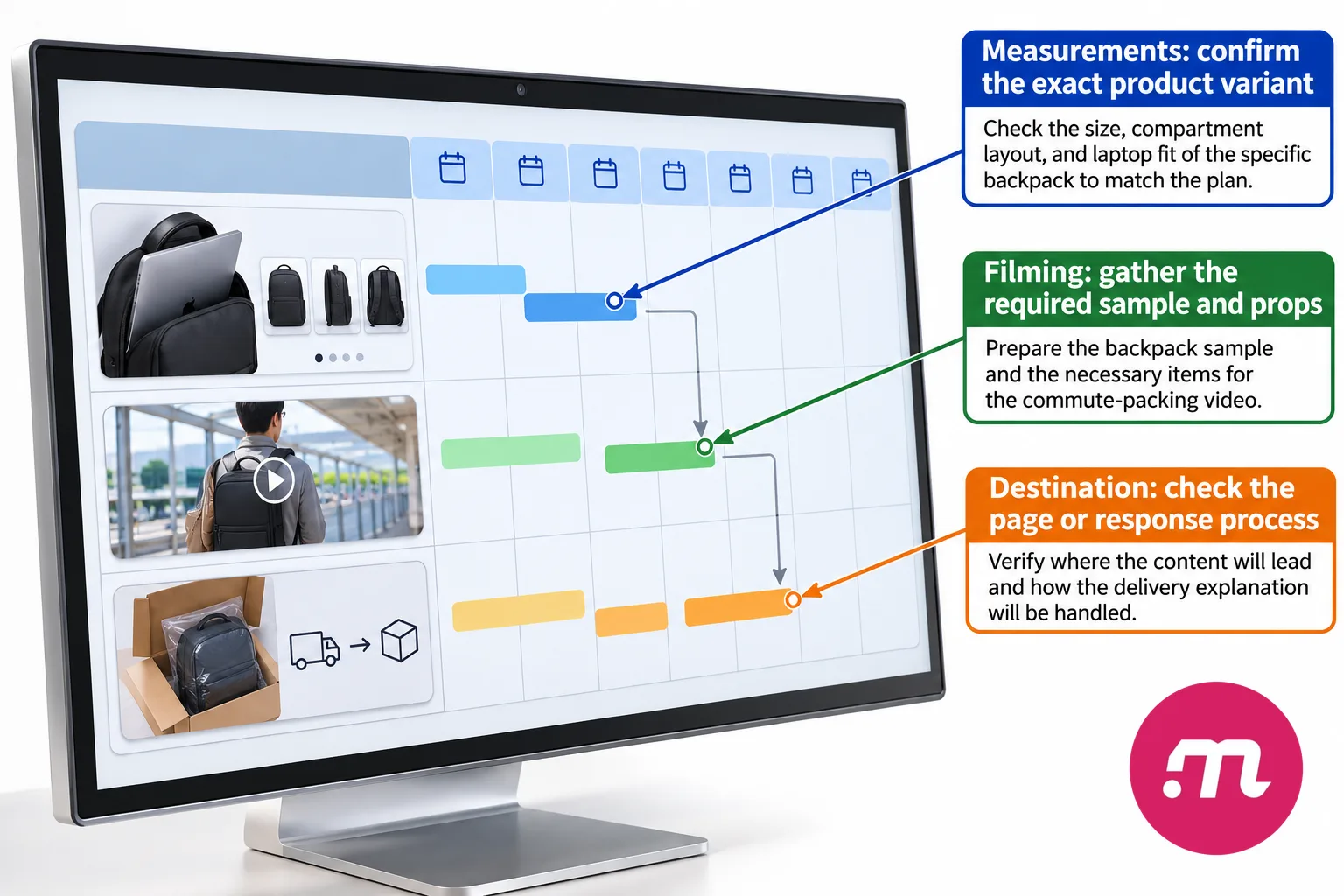
| Monday carousel | Explain laptop compartment measurements | Confirm dimensions for the exact variant | Caption matches the photographed product |
| Wednesday video | Show packing a normal commute bag | Gather the required items and sample | Visible contents support the claim |
| Friday explanation | Answer a recurring delivery question | Get the current operations answer | Wording avoids an unconfirmed promise |
Reserve one weekly batching session for work that belongs together, such as photographing the same sample or drafting related captions. Its length should reflect your capacity. A session that produces usable footage can be worthwhile even if editing and review happen later.
Give the reviewer the version that will actually appear, including the opening visual and the full caption. A topic outline is enough to agree direction, but it isn't enough to approve a finished product claim. If a change after approval affects the message, return the item to Review and state what changed. That short note is more useful than assuming everyone has seen the latest chat attachment.
Leave a clear handover
After the session, record the next unfinished task and person responsible. If the sample is missing, move the affected post deliberately and choose a checked evergreen brief instead. Don't swap in another variant just to preserve a date when the difference could mislead a buyer.
Before publishing, check the destination page or response process. A post inviting enquiries needs someone ready to answer them. A post pointing to a size guide needs a guide that matches its promise. Otherwise, the calendar delivers a post while the customer reaches a dead end.
We suggest reviewing one working week before committing a whole month of finished copy. Long-range campaign dates can stay visible, but uncertain stock or operational details need a later check. Planning ahead and pretending everything is final are different choices.
Plan India dates and IST slots carefully
Verify seasonal dates and operating details
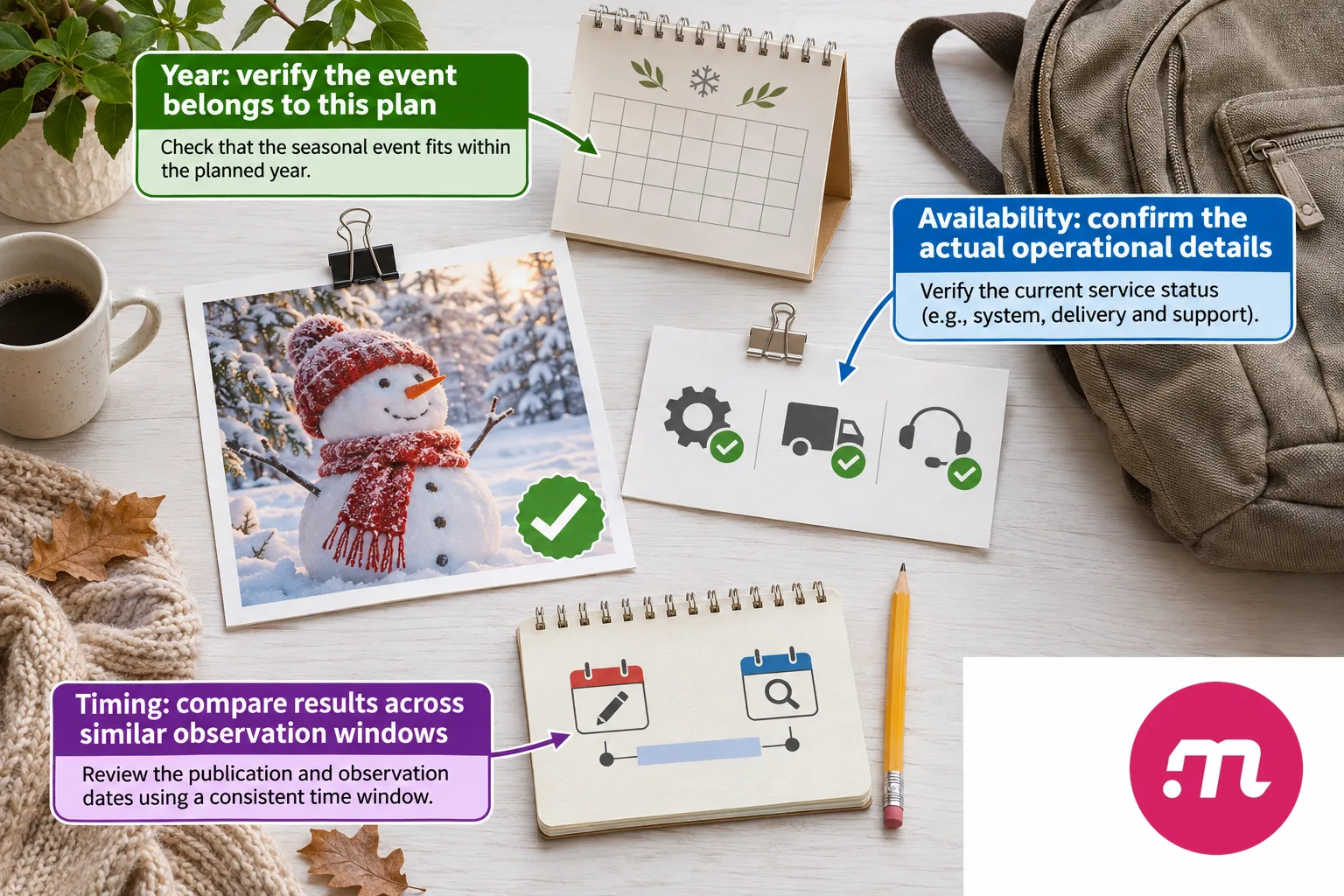
The Delhi central government office holiday list records Diwali on 8 November, Guru Nanak's Birthday on 24 November and Christmas on 25 December in 2026. Use the list as a dated reference, not as a statement of every region's observances or a courier's working arrangements.
Put a seasonal idea into the calendar only when it fits your audience. A backpack brand could share actual service availability around a holiday. It shouldn't imply a guaranteed arrival date just because the creative has a festive theme.
As this guide is prepared in November 2026, archive earlier occasions rather than carrying expired promotions into the current plan. If you reuse a seasonal row next year, verify its date, year and product availability again.
Test timing against your own work and audience
Write the intended publishing time in IST, then check whether your team can monitor questions around that slot. There isn't one verified hour in this guide that applies to every Indian brand. Use your available audience observations and compare similar posts over time.
Keep the publication date and the observation date together. A post that's been live for a week has had more opportunity to collect responses than one published this morning. We wouldn't treat those totals as a fair timing test.
If your production routine is still unreliable, fix that before testing tiny time differences. A carefully chosen hour can't rescue a missing asset or an unreviewed claim.
Review the plan without adding another dashboard
Measure what the post was supposed to do
Read the Customer action column before writing the result note, so the observation answers the question you started with. For the measurement carousel, check relevant visits or questions about fit. For a delivery explanation, note whether the wording answered the intended concern. Likes alone don't establish revenue or better conversion.
If you calculate conversion rate, define which visits and completed actions are included. Don't describe organic work as ROAS without stating attributable revenue and the cost counted. Track production spending in rupees and staff time when those inputs affect the next decision. A free content calendar template doesn't remove production cost.
Fix recurring administration mistakes
When the list grows, filters can help you find a status or channel. Google's sorting and filtering guide explains ordinary filters and filter views. Keep complete rows together when sorting, and remember that hidden rows still exist.
- Check the next deadline and name its actual blocker.
- Confirm that the approved asset matches the final caption.
- Record the live location after publication.
- Move one useful customer question into the idea queue.
- Remove an unused field before adding another one.
Tool fatigue is a reason to test a familiar spreadsheet first. A visual workspace may suit another team, and a scheduler may help when manual publishing becomes the repeated bottleneck. We wouldn't change products to avoid deciding who approves the post.
Conclusion: make the next post easier to finish
Copy the seven-column structure, complete the five setup steps and fill a week your team can produce. Keep ideas separate from commitments, put deadlines before publication and review the customer action you intended to support.
For help turning the plan into a workable production routine, explore Mommantum's social media marketing support and book a free strategy call. Bring the post that keeps slipping and the task holding it up. Start there.
Frequently Asked Questions
Key takeaways and practical details on this topic.
Make a social media post calendar by giving each committed post a dated slot, production brief, owner, deadline and approval state. Copy the seven-column structure in this guide into your own sheet, then complete one real post before adding more. Keep rough ideas undated on a separate tab. A publication slot is useful only when the required work is assigned.
A social media content calendar can look like a simple table with one row per post, rather than a decorative monthly grid. Its columns connect the slot and channel to the brief, owner, approval decision and material. A separate Ideas tab holds uncommitted thoughts. The important test is whether a colleague can identify the next unfinished task without another meeting.
A free social media planner can organise posts in a spreadsheet without automatically publishing anything. Use it to hold briefs, captions, deadlines and approval decisions, then publish through your chosen platform or existing workflow. Consider a scheduling service only when manual execution becomes a repeated problem. You don't need a new subscription merely to see the week's work together.
Create a social media content calendar in Google Sheets by adding the template headings, entering actual dates and assigning one accountable owner per post. Set the working time zone under File, then Settings, and add a status dropdown through Insert. Begin with a manageable week. Keep the caption beside the correct asset and record the published location after it goes live.
The social media posting calendar template in this guide is free to copy into your own spreadsheet for 2026 planning. It includes a seven-column structure and an illustrative working week. Check current seasonal dates and operating details before assigning a promotional post. The layout has no template fee, but producing, approving and monitoring content still takes staff time.
Choose a weekly social media workload your team can produce and approve consistently, rather than treating a universal quota as a requirement. The three-post worked example here demonstrates dependencies, not an algorithm formula. Review missed deadlines and useful customer actions before increasing frequency. A second platform may still need new wording or review even when it reuses an asset.
Free and paid calendar tools solve different levels of planning and execution work. A familiar spreadsheet is a useful starting point for a small list of briefs and approvals. A paid product becomes worth evaluating when you can name a repeated limitation, such as manual publishing or difficult visual review. Verify its current capabilities and restrictions before committing.
Adapt a posting calendar for Instagram by specifying the format and visual instructions for each item. A Reel needs a filming brief, a carousel needs a slide order and a Story sequence needs its own publication instructions. Keep a grid preview as an optional review aid. It can show adjacent visuals, but it doesn't verify a product fact or a delivery promise.
Plan social media without a scheduling subscription by keeping a small dated spreadsheet and a separate idea queue. Record the brief, asset location and approval decision beside each post so you don't have to rebuild context from messages. Start with the work you can finish this week. Add scheduling software later only if manual publication becomes a repeated bottleneck.
Prepare for weekly content planning by capturing customer questions in an undated idea queue as they arise. Before the session, identify which questions you can answer with available product facts and assets. Commit only those briefs you can assign to an owner. You don't need to invent a topic for every empty day, and every useful idea doesn't need an immediate deadline.
Make a smaller posting calendar by reducing active channels and choosing a few repeatable content lanes and production formats. Assign a realistic week rather than filling a month with optimistic promises. Review whether filming, missing facts or approval caused the previous gaps. A batching session can help related production tasks, but it doesn't replace the time needed for review.
Keep content status clear with written stage labels beside the channel, brief and deadline. Colour can make the plan easier to scan, but the label should explain whether the item needs review, changes or publication. Start with the seven working columns and split fields only when that helps a real decision. A filtered view is useful, provided complete post rows stay together.
Ready to implement this for your brand?
Connect with our Jaipur growth studio to turn these strategies into revenue for your D2C or ecommerce business.