Instagram Reels Dashboard Link: 6 Practical Checks For Indian Brands To Open The Right Report, Understand Viewing Metrics And Connect Content Decisions With Customer Enquiries Before Comparing Results Across Accounts And Platforms
Open the right Reel report and check what its numbers cover. Use the account, dates and customer response to decide what to change next.
Introduction
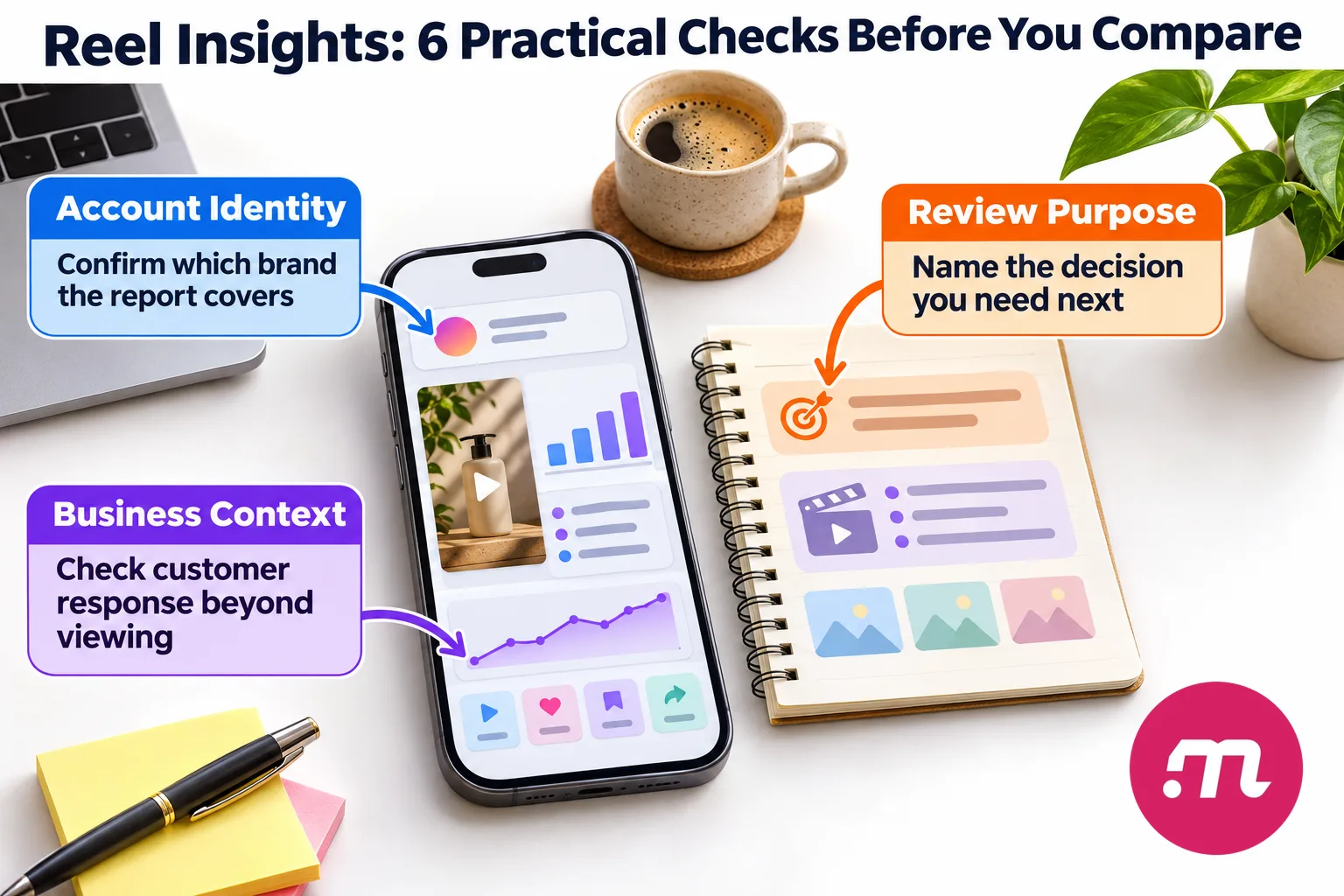
Instagram reels dashboard link searches often start with a missing button, but a link alone won't explain your Reel's results. Open Instagram itself. Confirm the account first, then look for its dashboard or Insights controls so you know which profile and reporting view will supply the figures for your review. For a single Reel, open it from your own profile and choose View insights where available. Start there before trusting a forwarded login page.
For an Indian brand, the useful result is knowing what to change next: the opening, the product explanation or the route to an enquiry. We would first confirm what the report covers, then connect it with customer actions. Our social media marketing work treats that review as part of content production, rather than a monthly screenshot exercise.
Table of Contents
- 1. Introduction
- 2. Instagram reels dashboard link: start with your account
- 3. Open a Reel report and record its scope
- 4. Instagram reels dashboard link options on desktop
- 5. Read attention metrics before drawing sales conclusions
- 6. Check missing insights without inventing a cause
- 7. Protect access and keep content files separate
- 8. Turn the report into a decision for the next brief
- 9. Conclusion: open the right report, then act on it
- 10. FAQs
Instagram reels dashboard link: start with your account
Use an official starting point
The practical browser starting point is Instagram's official website, not a supposed universal address for every account's Reel statistics. Start with your own profile. Look for Professional dashboard on a business or creator profile, or use the dashboard and Insights labels your account displays; the route should identify the account whose content you're reviewing.
Some current guides describe Your dashboard for public personal accounts, while older instructions limit analytics to professional profiles. Check before switching. A tutorial's different button isn't enough reason to change account type, particularly when your current settings and available tools may already provide the report you need. We would use a professional profile for an established brand's business workflow, but that isn't a reason to promise identical access everywhere.
Separate account reporting from one Reel's results
An account overview can include several content formats during a selected period. A Reel-level report concerns one published piece. If you need to decide whether a particular product demonstration worked, open that Reel rather than assuming the overview's total belongs to it.
Meta's professional dashboard also includes educational resources. Its Best Practices announcement describes guidance on creation, engagement, reach, monetisation and guidelines. Those resources can inform the next edit, but an educational card isn't a performance result. We would keep advice, eligibility messages and measured outcomes separate in a team report.
Write the account handle at the top of your notes. This matters when the same person manages a founder profile and several store accounts. A screenshot from the wrong profile can derail the review. Confirm the profile before discussing why its numbers changed.
Open a Reel report and record its scope
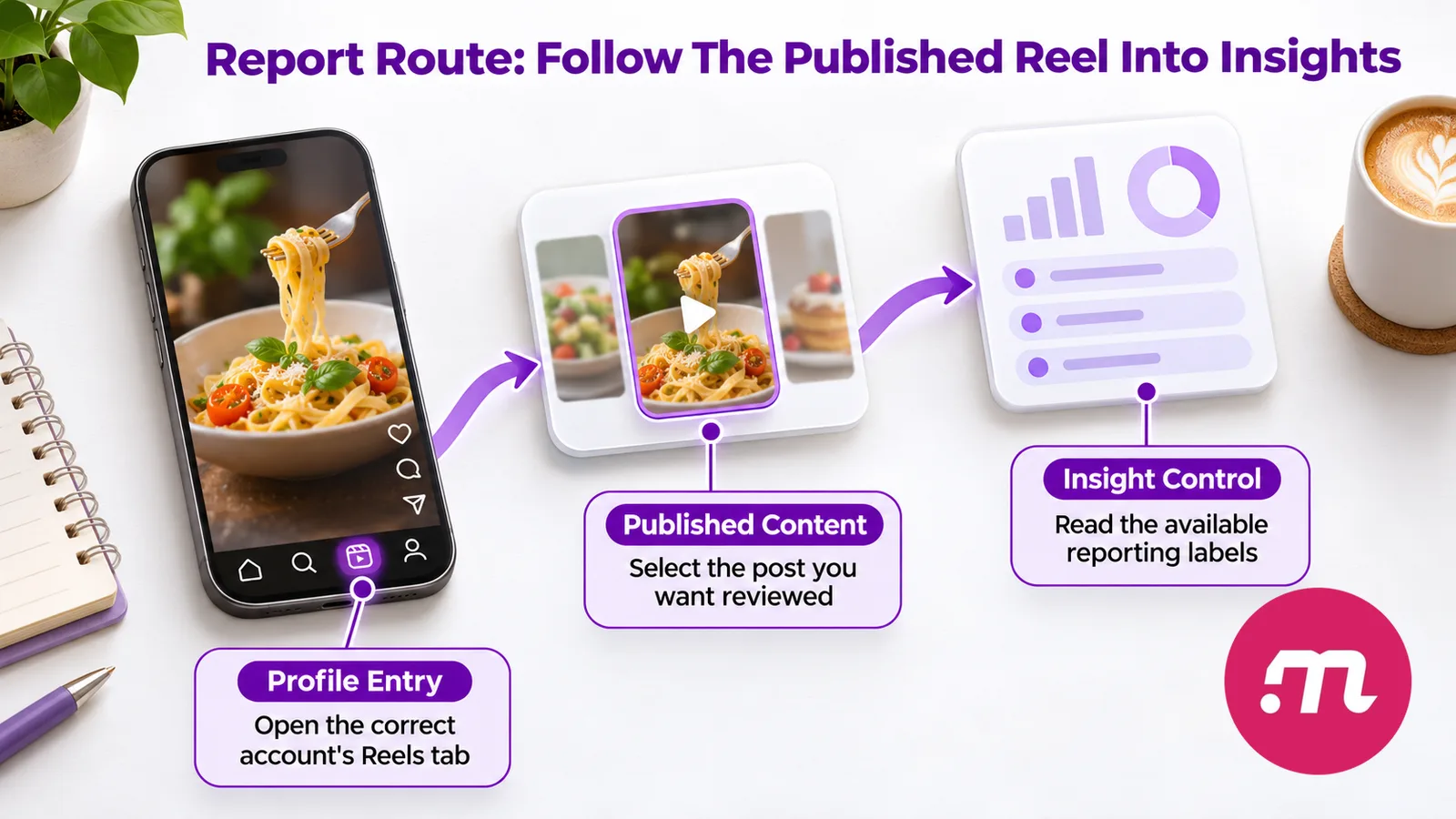
Follow the content from your own profile
Use this sequence when you want to review an individual Reel. Labels can differ across releases, so follow the control's name rather than an old screenshot's exact position.
- Open Instagram and confirm the intended profile.
- Open the Reels tab on your own profile.
- Select the published Reel you want to review.
- Choose View insights if your account offers it.
- Read the displayed metric labels and any information notes.
- Record the post link, reporting scope and review date.
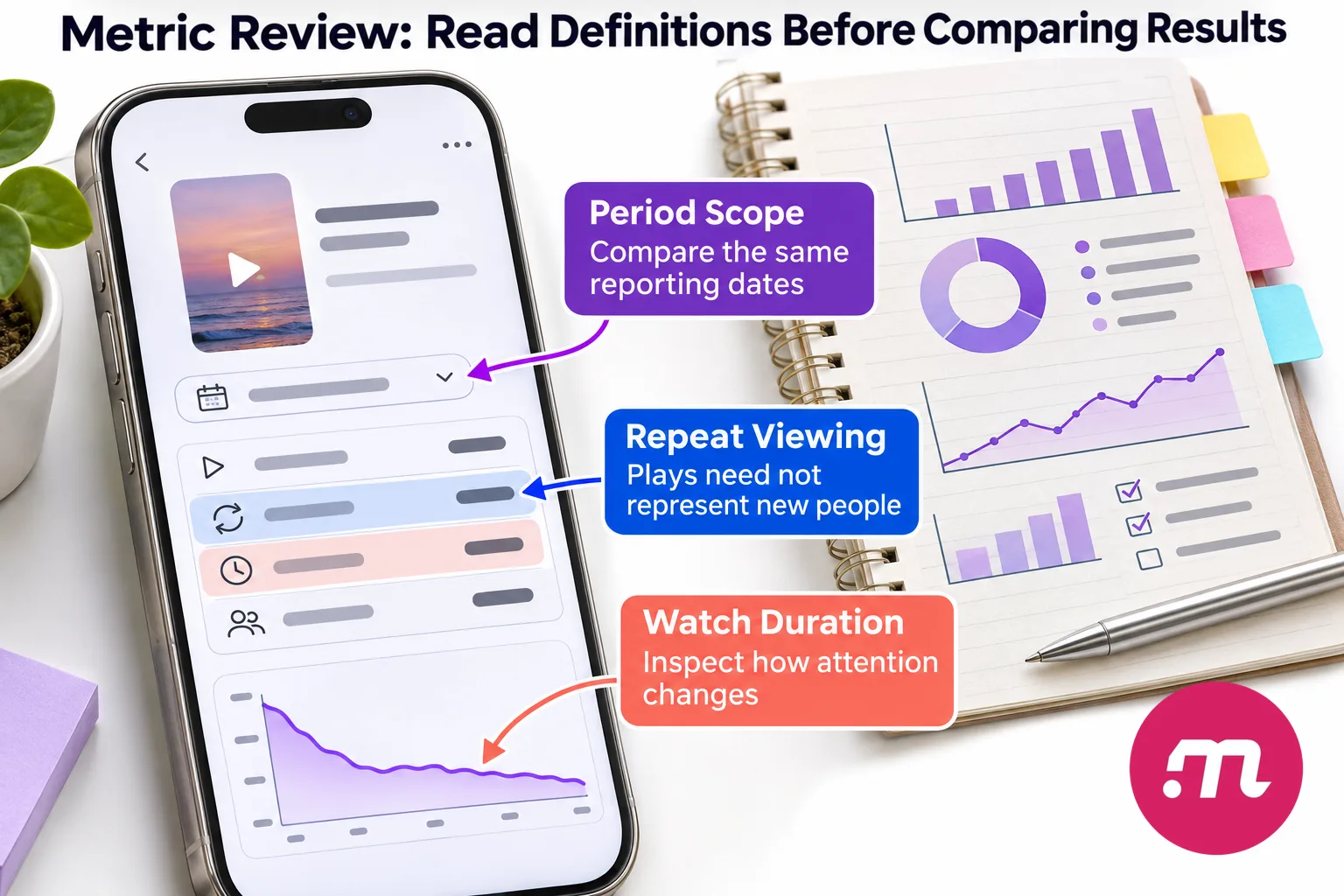
If you use the account dashboard instead, open its Insights or content section and filter to Reels where the interface allows it. Check the dates. A lifetime Reel total and an account overview for a shorter period answer different questions, even when both screens use the word views, so record the selected period before you compare posts.
Save enough context for another person to check
Record the post's subject, its publication date and whether it received paid support. Keep the exact displayed metric name beside each value. If the screen includes Facebook activity, say so. If it doesn't state the platform scope clearly, record that uncertainty rather than guessing.
We would also save the question the review should answer. For a delivery explainer, that might be whether viewers reached the part about serviceable locations. For a store Reel, it might be whether people asked for directions. We'd put that question beside the numbers so the editor knows what to inspect.
Instagram reels dashboard link options on desktop
Check the browser view before promising every field
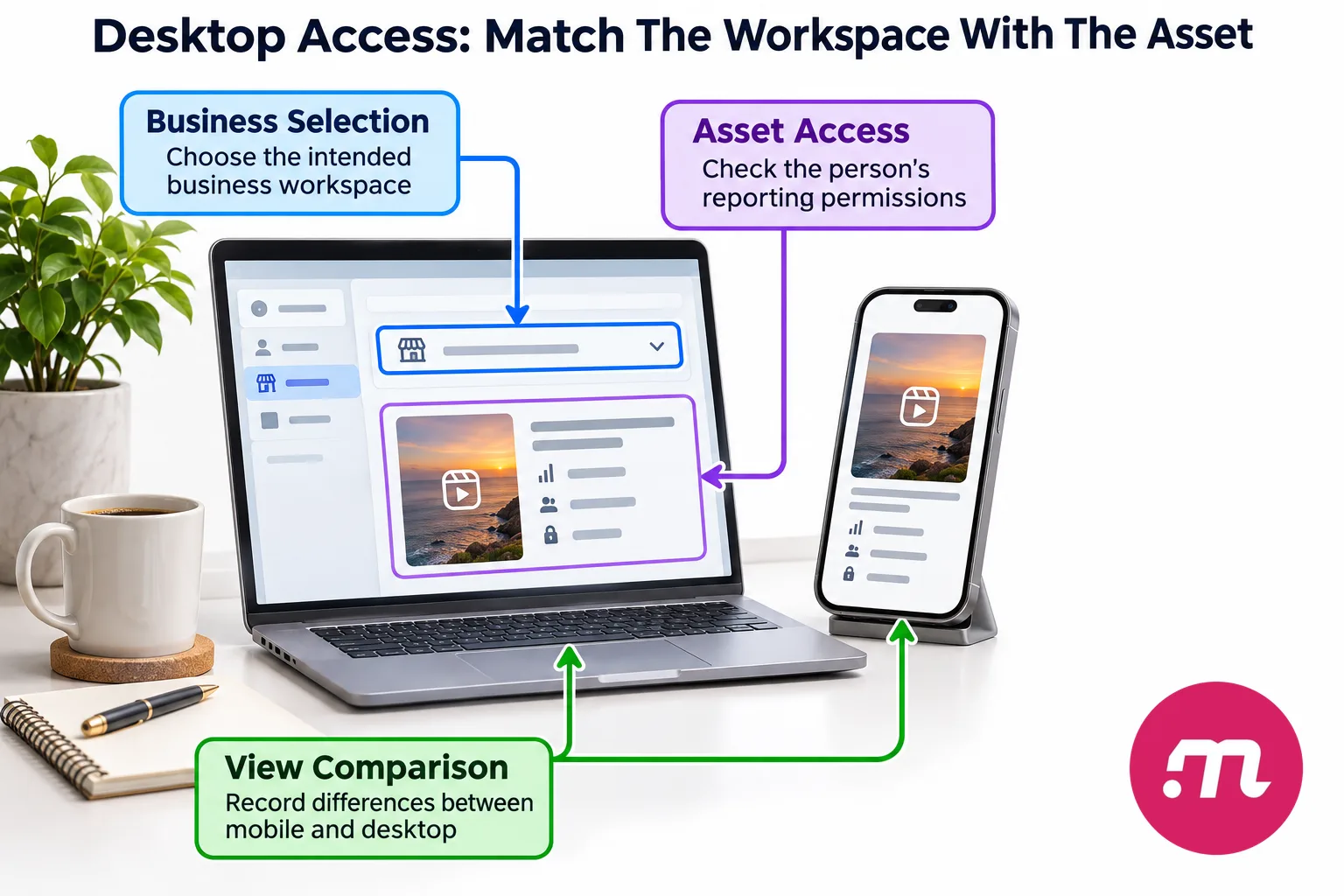
Sign in through the official Instagram site and look for Dashboard or Insights in the controls available to your account. Current guides describe account and content views on the web, but desktop instructions and mobile Reel screens don't always match. If a field is missing, check the same post in the mobile app before calling the data lost.
We wouldn't send a client an untested deep link and call it the dashboard. Your teammate needs their own access. A bookmark may help you return to a report in your signed-in session, but it doesn't establish that somebody else can open the same content or see the same controls. Record the navigation route as well as the destination so the review doesn't depend on one person's browser state.
Use the business workspace with the correct identity
If your business already manages connected assets through Meta Business Suite, start from Meta's business website and select the intended business and Instagram asset. Check the content and reporting controls that your role permits. Don't assume access to a Facebook Page proves access to the matching Instagram report.
For a handover, ask the authorised owner to check account connections and the access needed for the task. Avoid sharing passwords just to get a screenshot. We would identify which profile, person and reporting action are involved before changing permissions or reconnecting assets.
The trade-off is consistency. Desktop can make a team review easier, while the mobile app may show a particular Reel control more clearly. Choose the view that answers the question, record its scope and use the same basis next time. Don't merge screenshots merely because their totals look compatible.
Read attention metrics before drawing sales conclusions
Use the definition attached to the number
Views, unique viewers or accounts reached, and watch time measure different things. Read the metric definition first. Repeat viewing can make a play-based total larger without adding the same number of new people, so use the information control beside the current metric before calling an increase audience growth.
Meta's Reels watch-time announcement explains that total watch time includes replay time and describes average watch time as a way to understand attention. Because labels and calculations can change, use the current screen's definition when reporting an average. Don't divide unrelated totals to reconstruct a number the interface hasn't shown.
| Question | Evidence to inspect | Useful next action | What it doesn't prove |
|---|---|---|---|
| Did people encounter the Reel? | Its displayed distribution and audience metrics | Check the audience and platform scope | That everyone intended to buy |
| Did the explanation hold attention? | Watch time and available retention detail | Review the opening and demonstration | That the offer is profitable |
| Did viewers respond? | Relevant comments, shares, saves and follows | Identify unanswered buyer questions | That every interaction became a customer |
| Did the campaign produce business? | Tracked enquiries, orders and acquisition costs | Review the complete buying route | That views alone caused revenue |
Compare content on a fair basis
Compare Reels with similar jobs and observation periods. A store-location guide and a broad entertainment clip may produce different response patterns for good reasons. We'd judge the location guide by relevant interest and visits, rather than declare it a failure because a joke earned more plays.
Paid support changes the comparison. Record the support a promoted Reel received before comparing its distribution with an unpromoted post, and keep both inputs visible when the team discusses what the content achieved. If one post had paid support, its larger total doesn't tell us that the opening line was better. Inspect the content before writing a confident explanation of the change.
Check missing insights without inventing a cause
Describe the failure narrowly
Forum questions describe a missing Professional dashboard button, errors after a category change and different date options across screens. Those are troubleshooting clues, not proof of a universal product change. In one thread, the author explicitly describes the category-change explanation as a hypothesis. We would preserve that distinction.
First establish whether the whole dashboard is missing or only one report fails. Confirm the account, then try the Reel from its original profile location. Check whether other content reports load and whether the same problem appears on another normal reporting surface you already use. Record the error verbatim. A support request that names the failed report and preserves the exact message gives the next person something they can check, instead of asking them to interpret a general claim that everything is broken.
Look at privacy and account settings before changing them. If you recently changed account type, category or visibility, record what changed and when. That history can help a support request, but timing alone doesn't establish causation. We wouldn't switch repeatedly between account types to test an unconfirmed forum suggestion.
Keep platform and date differences visible
Another forum report describes Facebook views appearing in one area but not in Instagram Reel Insights. If you see a similar mismatch, retain both platform reports and their labels. Don't manually add the numbers and present them as unique people; the audiences may overlap, and the totals may have different definitions.
A restricted date picker also doesn't prove every older Reel's information has disappeared. Check the account overview and the individual content report separately, then document which range each offers. For important reviews, keep periodic records in your approved workspace rather than relying on an assumed permanent history.
Reopen the app or check for an available update as basic diagnostics, but don't promise either will restore missing fields. Preserve unfinished content before destructive troubleshooting. If the issue persists, use the support options in your actual account with the post link and error details.
Protect access and keep content files separate
Don't exchange credentials for a dashboard shortcut
A message that asks you to enter credentials to inspect an urgent account problem deserves a separate check. Open the app yourself instead of following the message's route. Meta's Instagram security guidance warns about account-related scam DMs and recommends two-factor authentication and reviewing login activity.
If you've entered a password into a suspicious page, use official account settings to change it, inspect active sessions and check your recovery contact details. Use official recovery if access is lost. We'd put the content report on hold until account control is secure, because the account also contains customer conversations and reporting can wait while you protect that access.
A dashboard isn't an asset backup
Questions about how to save Reels from Instagram concern a different output. An Insights report records performance; Instagram reels save controls keep references or, where available, downloaded copies. Neither replaces the original master and editable project your editor should retain.
For an AI-assisted production brief beginning "ai se reels kaise banaye", keep approved source material and the final export alongside the script. Meta's Edits announcement describes exports without added watermarks, which can help your own production workflow. Still check the output, captions and audio before treating a reels video as approved.
We would connect the report to the specific approved version and original post link. That lets the next editor inspect the content behind the result without downloading somebody else's clip or hunting through a private saved collection. Keep research references and owned production assets clearly identifiable.
Turn the report into a decision for the next brief
Follow the customer response beyond the Reel
For a D2C brand, follow relevant enquiries into product-page visits and completed orders where tracking allows. Review COD cancellations and returns before calling attributed revenue a commercial success. State the calculation. ROAS compares attributed revenue with ad spend, while CAC compares the acquisition costs you include with new customers; the report should name those inputs so another person can understand the result.
Our Urban Vada Pav case study reports daily footfall increasing from 40 to 210 and cost per walk-in moving from ₹220 to ₹58. The work combined branding, Instagram content and advertising. Those are wider marketing results, not proof that a dashboard setting or one Reel caused the change.
End the review with a specific test
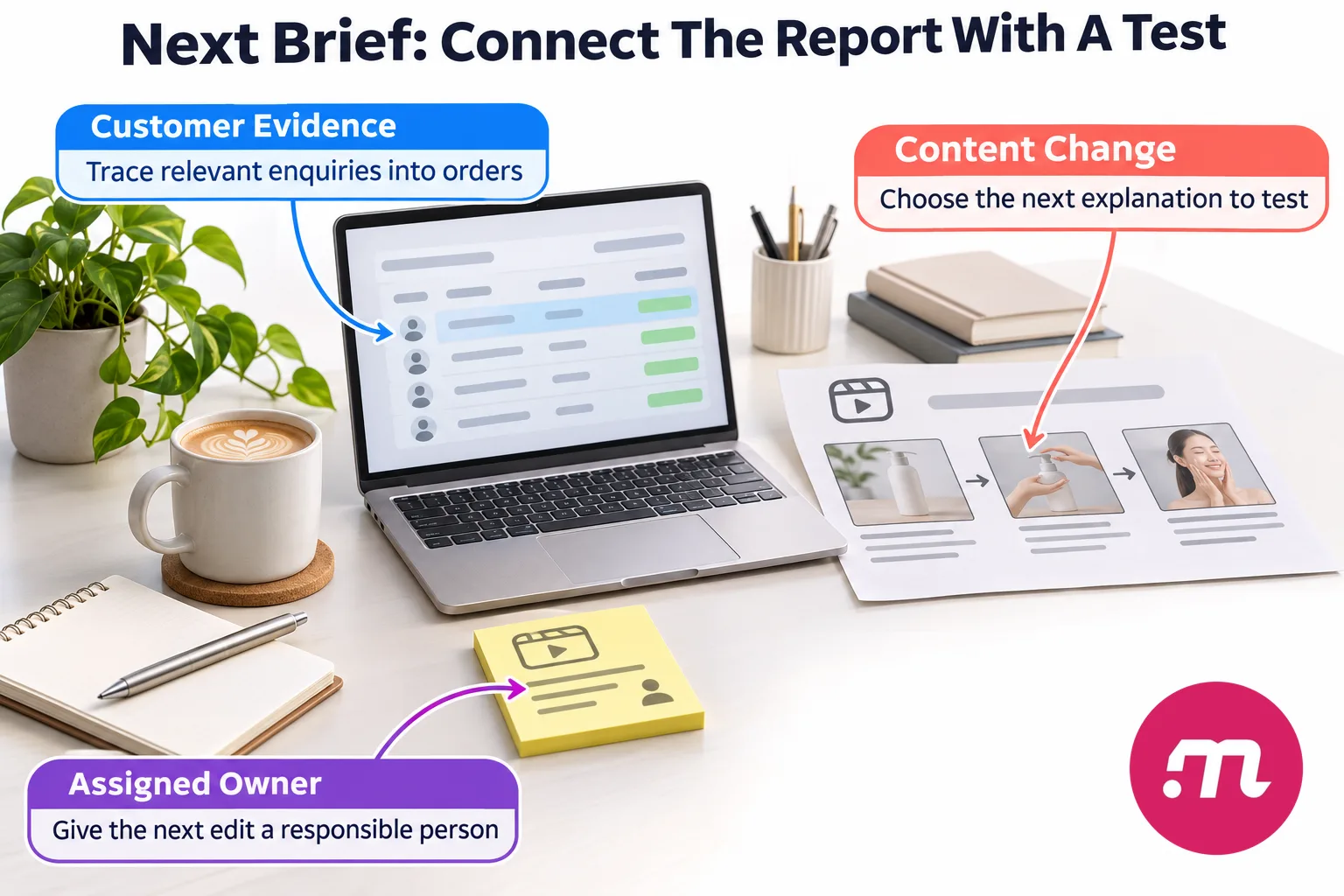
Our marketing FAQs explain why content and performance work belong together. For the next brief, choose a change you can inspect: show the product sooner, clarify the location or answer a repeated delivery question. We would change the explanation before adding production volume to a problem nobody has diagnosed.
- Confirm the account and reporting period.
- Record exact metric names and platform coverage.
- Compare content with similar purposes and paid support.
- Check relevant customer actions beyond viewing.
- Assign the next content change to an owner.
Write the next change beside the result that prompted it. If a Reel gets attention but enquiries are unsuitable, revisit the promise and audience. If interested people reach the product page but don't order, inspect the buying experience. More reporting won't repair a mismatch in the offer.
Conclusion: open the right report, then act on it
Start from your official account and inspect the Reel or dashboard controls it provides. Keep date ranges, platform scope and metric definitions visible, especially when screens disagree. Keep the source video. Use the report to select a content or buying-process change, then retain the original version behind that decision so the next editor can inspect what customers actually saw.
Book a free strategy call through our social media marketing team if your reports aren't producing useful next steps. Bring a recent Reel, its reporting context and the customer response. We'd decide what needs checking before recommending more content or spending.
Frequently Asked Questions
Key takeaways and practical details on this topic.
Your Instagram account is the reliable starting point for Reel reporting, rather than an untested universal dashboard link. Open the official app or website, confirm the profile and use its available dashboard or Insights controls. For a specific Reel, open it from your own profile and look for View insights.
Reel insights are usually reached by opening your own profile, selecting the Reels tab and opening the published Reel. Choose View insights where your account offers it, then record the metric names and reporting scope. If that control is missing, compare the account dashboard route before assuming the information has disappeared.
Instagram's web interface can provide account and content reporting, but don't assume it matches every mobile Reel screen. Start at the official Instagram site and check the Dashboard or Insights controls your account displays. Record which view supplied the figures, and check the mobile app when a particular field is unavailable.
An old Reel may fall outside the history offered by a particular reporting screen, so check the individual Reel as well as the account overview. Confirm the account, publication date and available date controls before drawing a conclusion. Keep periodic records of important results rather than assuming every metric remains available indefinitely.
A professional profile provides a brand's professional dashboard, but don't assume a personal account has no reporting tools. Current guides describe dashboard access for public personal accounts too, while older instructions differ. Check the labels and eligibility in your actual account before changing type or visibility solely to follow a tutorial.
Instagram reporting history differs between the account overview and individual content reports, so check the date controls on the screen you're using. A shorter account period isn't comparable with a Reel's accumulated total. Save the reporting date and scope beside important results so the next review has a consistent basis.
Instagram Insights are useful for diagnosing content performance, but you need the metric's definition and reporting scope before drawing a conclusion. Read any information notes, distinguish repeated viewing from unique people and keep platform coverage visible. Treat a mismatch between screens as something to investigate, rather than repairing the total with an unsupported calculation.
Instagram's built-in Insights don't require buying a separate reporting subscription, although account eligibility and available tools still matter. Start with the controls in your official account before paying for another dashboard. If a tool is proposed for team reporting, check what problem it solves and which permissions it requests before connecting it.
A missing dashboard needs a scoped support report before repeated account changes. Record the handle, device, app version and exact error, then check whether individual Reel insights or other content reports load. Preserve unfinished work before destructive troubleshooting. The forum report behind this question describes recurring failures, so no single repair should be promised.
A category change followed by missing insights doesn't prove that the category caused the failure. Record what changed and when, check the same Reel through available reporting routes and report the observed error. Avoid repeated switches based on speculation; the original forum author explicitly described their explanation as a hypothesis rather than a confirmed cause.
Cross-posted Reel reports should retain separate platform figures when the displayed aggregation is unclear. Record each source, date range and metric label, then explain the discrepancy to the brand. Don't add the totals and call the result unique people. Keep the original screenshots available while checking the issue through your account's support options.
A narrower date picker requires checking individual Reel reports separately from the account overview. Use comparable periods where available and label any remaining difference in your report. If older figures aren't accessible, say so rather than presenting an incomplete comparison. Keep periodic records so the next review doesn't rely entirely on a changing interface.
Ready to implement this for your brand?
Connect with our Jaipur growth studio to turn these strategies into revenue for your D2C or ecommerce business.